Social media can feel like a scoreboard. A single number decides if your post is “good” or “ignored”. Facebook knows this pressure well, so it added a simple option to hide likes (reactions). You decide who sees the numbers and when. It can help you post freely without worrying about reactions.
Many people hide likes for personal comfort, confidence, or privacy. Brands do it to avoid sending the wrong signals and to let users focus on content, not numbers. Facebook lets you hide likes on your posts and even hide like counts from others on your feed. Here’s how you can do both.
Why People Hide Likes on Facebook
Likes shape behavior. Many people post for numbers instead of expressing themselves. Hiding likes removes that pressure and helps you focus on what you want to share. It can also prevent others from judging your content based only on reactions rather than the message. Brands use it to avoid looking small during early growth and to direct attention to photos, stories, and ideas.
How to Hide Facebook Likes Using Android/iOS Mobile App
This method controls the like counts on your own posts. It also lets you hide like counts from other people’s posts in your feed. Both options are in the same menu, but they are separate controls.
You can do this from the Facebook app in a few quick steps.
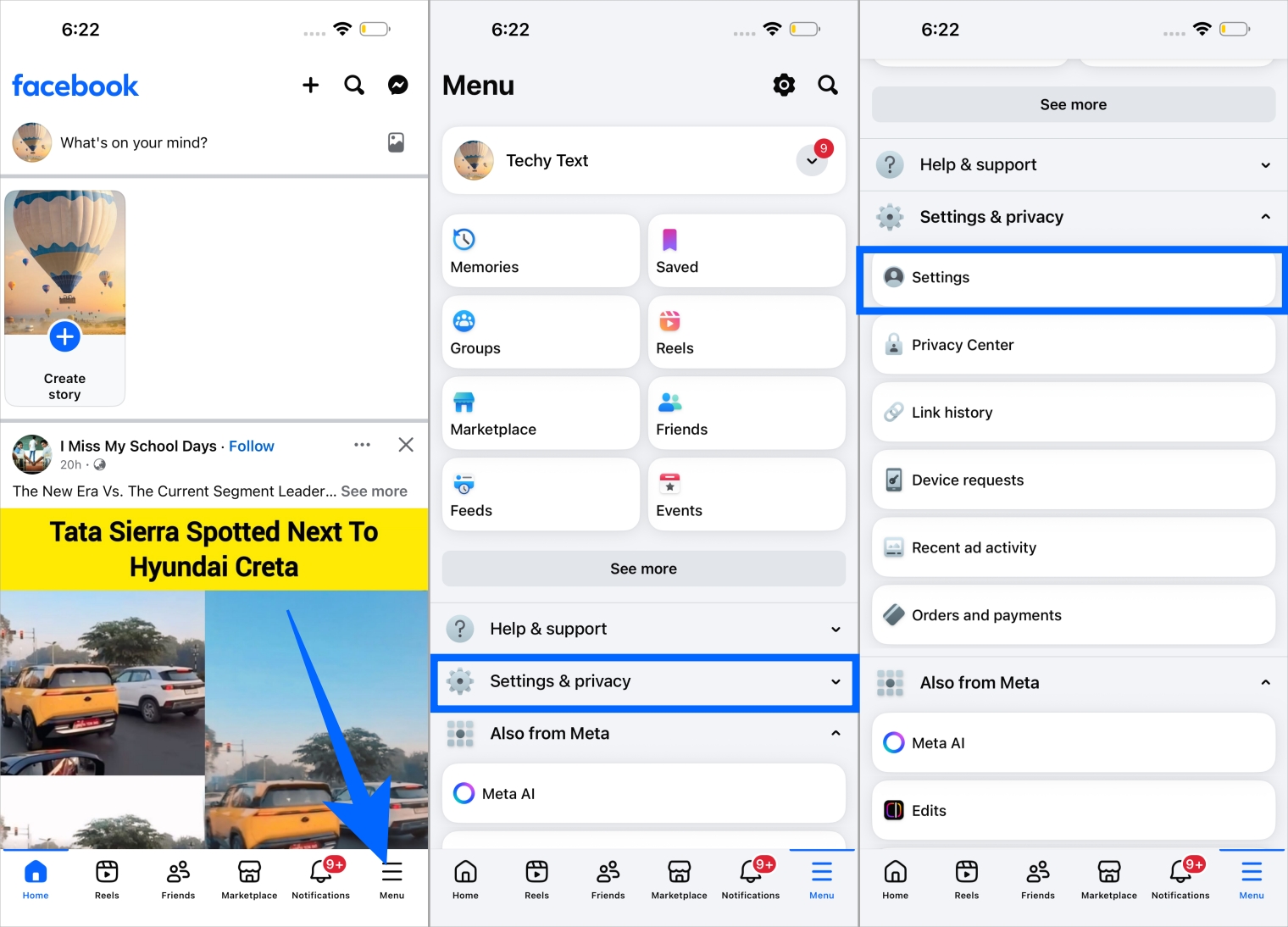
- Open the Facebook app.
- Tap Menu at the bottom right corner.
- Tap Settings & Privacy, then Settings.

- Go to Reaction Preferences.
- Turn on “On your posts” under Hide number of reactions.
- Turn on “On posts from others” if you want to hide like counts everywhere.

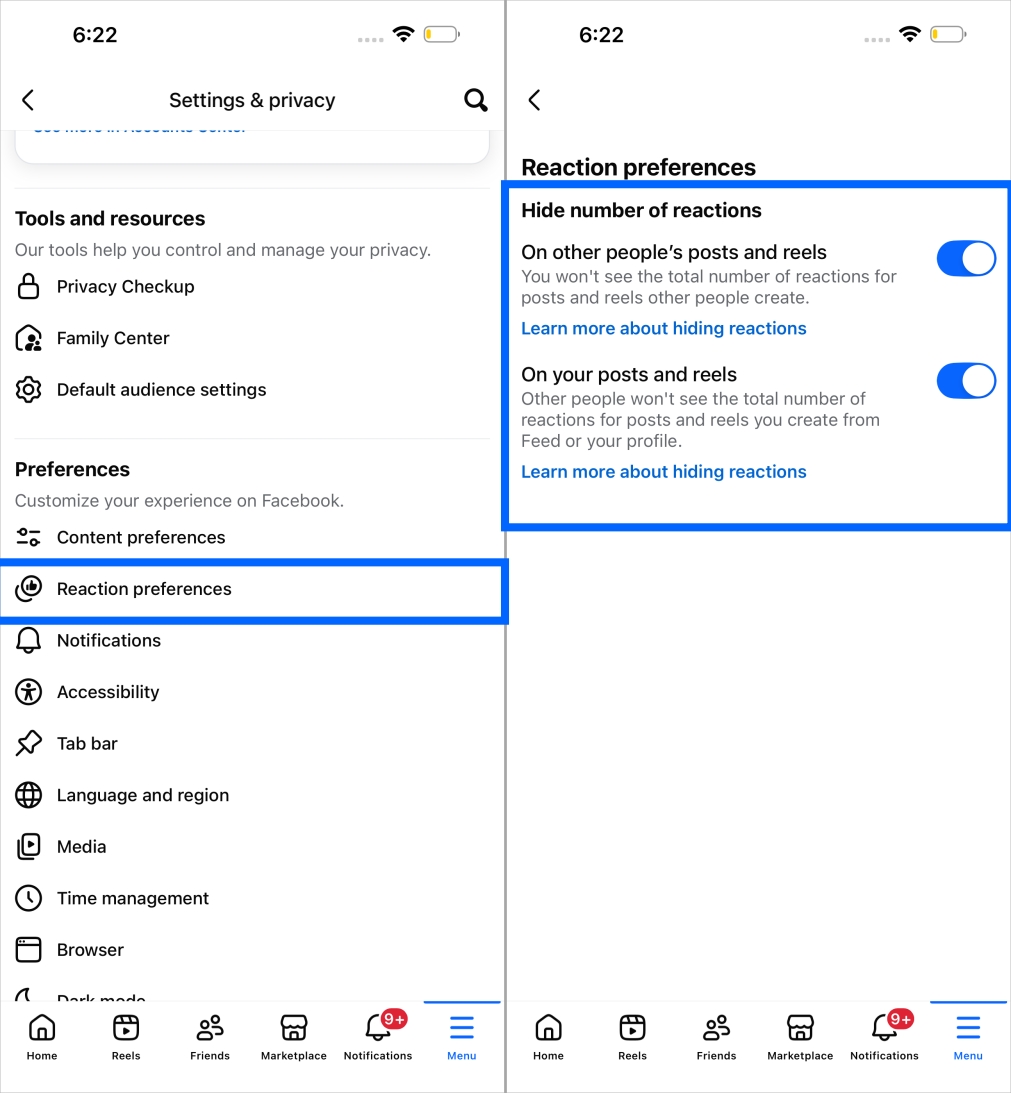
Facebook still shows reaction counts on Reels and Marketplace posts.
How to Disable Facebook Like Counts using the Web
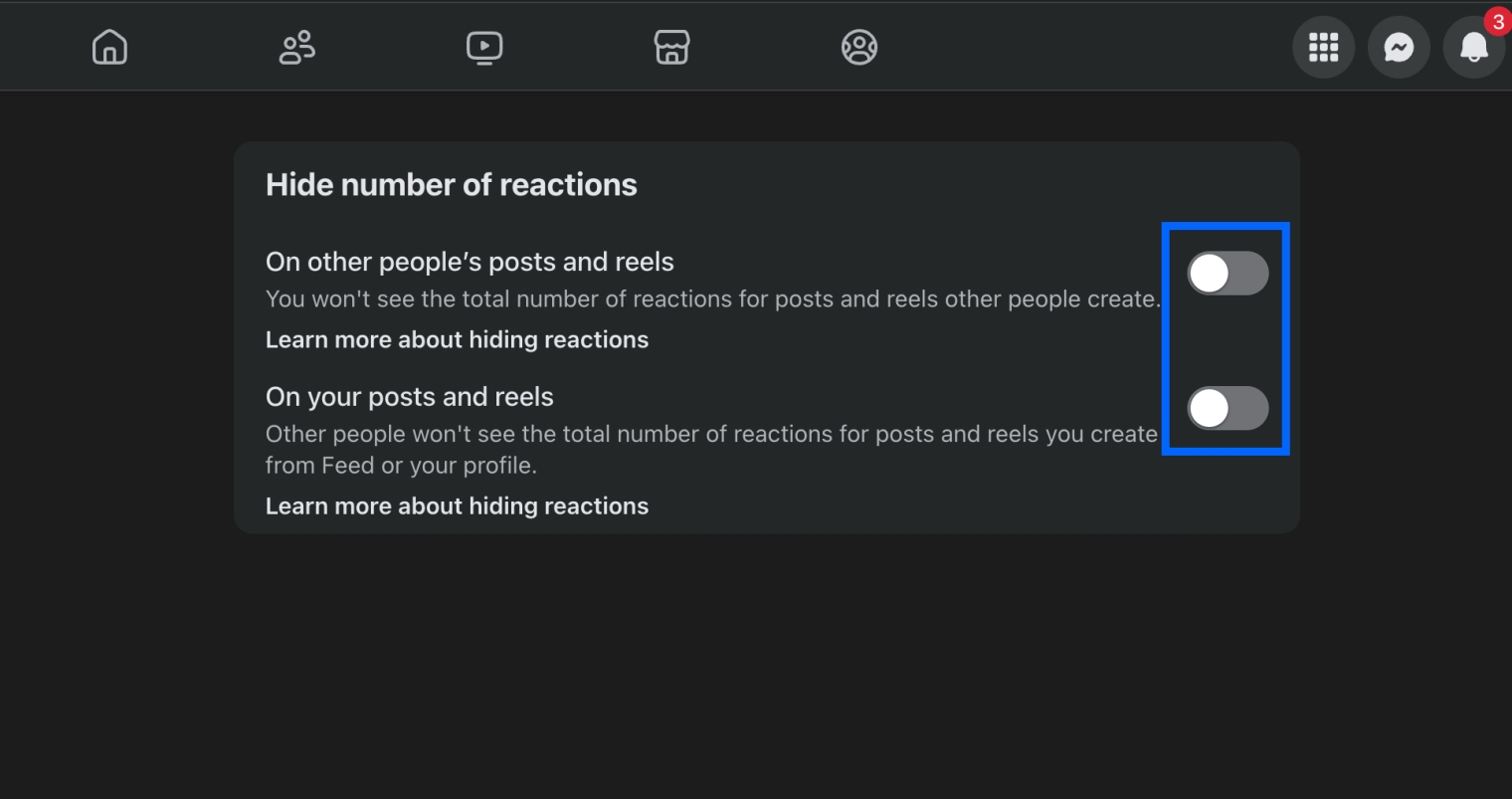
If you use Facebook on a laptop or desktop, the steps are similar. You can control your own posts and your feed from here too.
If you use Facebook on a laptop or desktop, the steps are similar.
- Open Facebook in your browser.
- Click your profile picture dropdown.
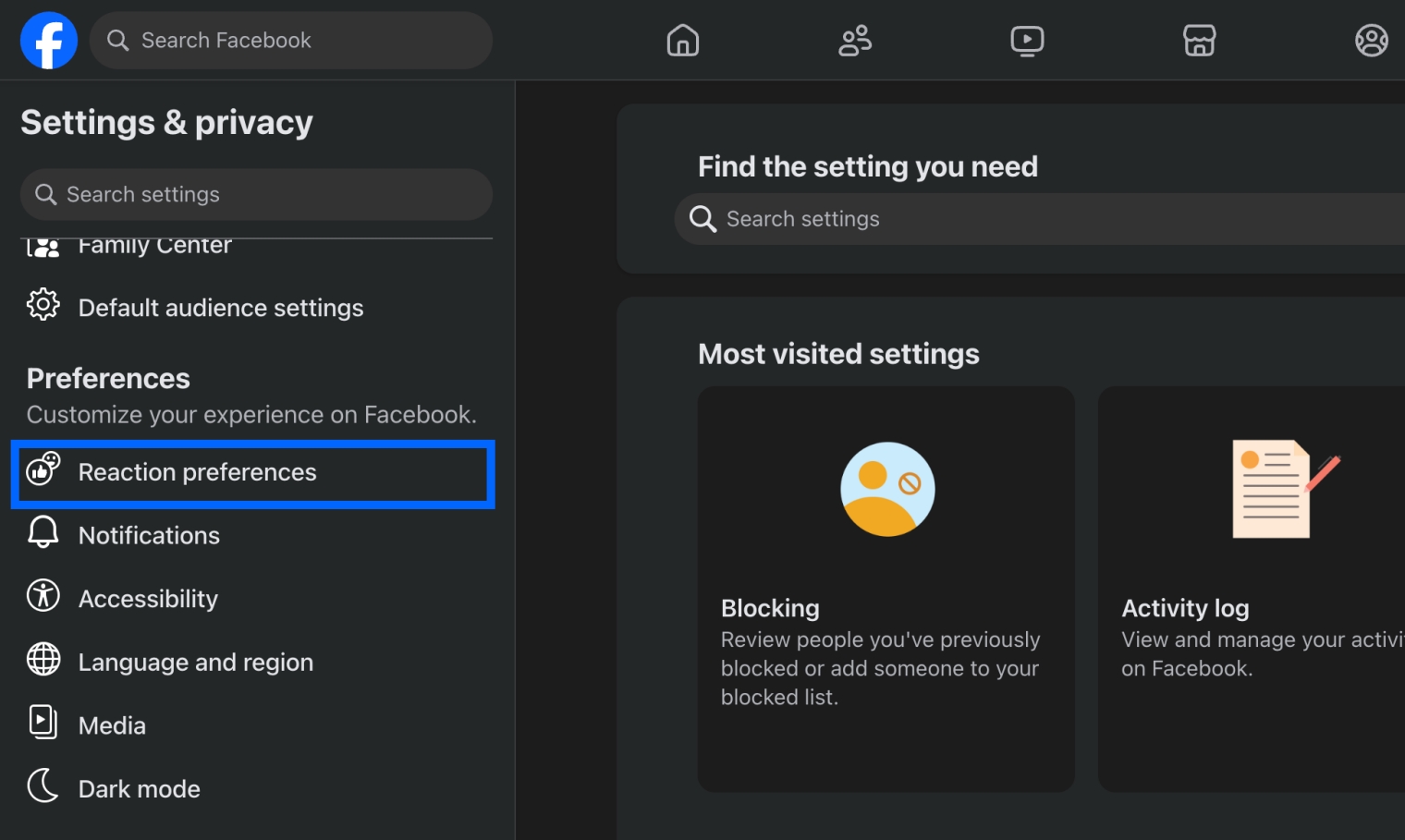
- Select Settings & privacy.

- Choose Reaction Preferences.

- Enable both toggles to hide likes on your posts and others.


Related:
- How to See Exactly Who Shared Your Post on Facebook
- How to Turn Off Facebook’s ‘People You May Know’
- How to Make Your Facebook Account Private
How to Hide Likes From Your Facebook Feed Using an Extension
This method only hides likes visually on your feed. It does not change how others see your posts. It is useful if the built-in setting is missing or rolling out slowly.
If the option isn’t visible yet, you can use a browser extension.
- Install “Hide Likes” on Chrome or Edge.
- Open Facebook, and likes will disappear from your feed.
Extensions only hide likes for you. Other people can still see your like counts.
How to Hide Pages You’ve Liked on Facebook (Profile Privacy)
Page likes are different from post likes. They show your interests publicly by default. Categories like music, movies, food, sports teams and brands can reveal details about you. You can choose who sees this information category by category.
Your liked pages can reveal a lot about your interests. You can hide them to protect privacy.
- Open Facebook on the web.
- Go to your profile.
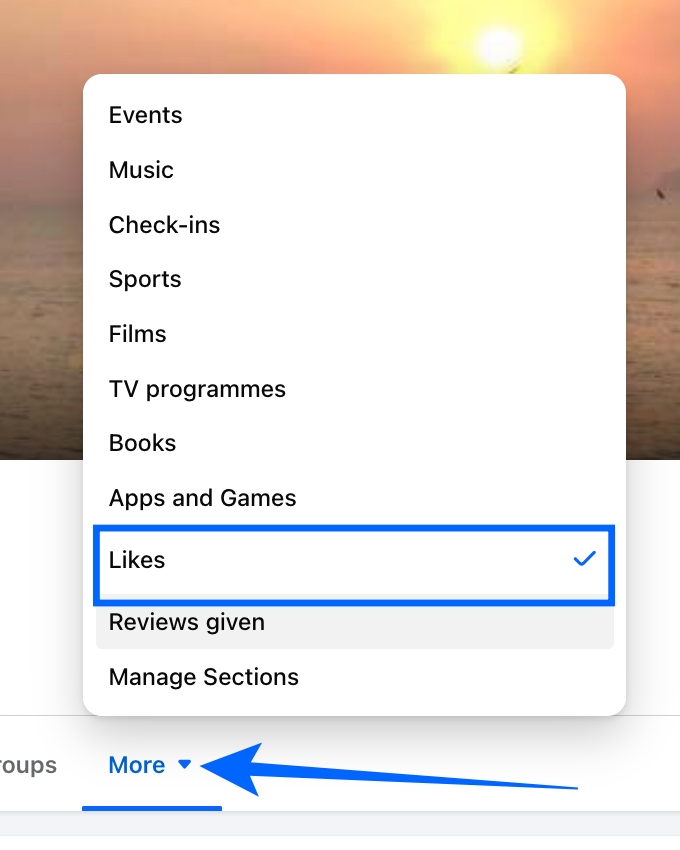
- Click More and choose Likes.

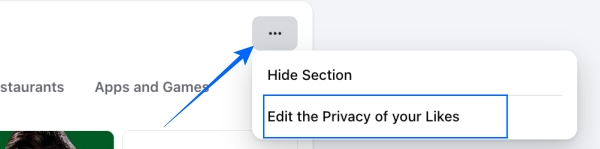
- Click the three dots near Likes.
- Select Edit the Privacy of your Likes.

- Change each category to Only Me if you want.

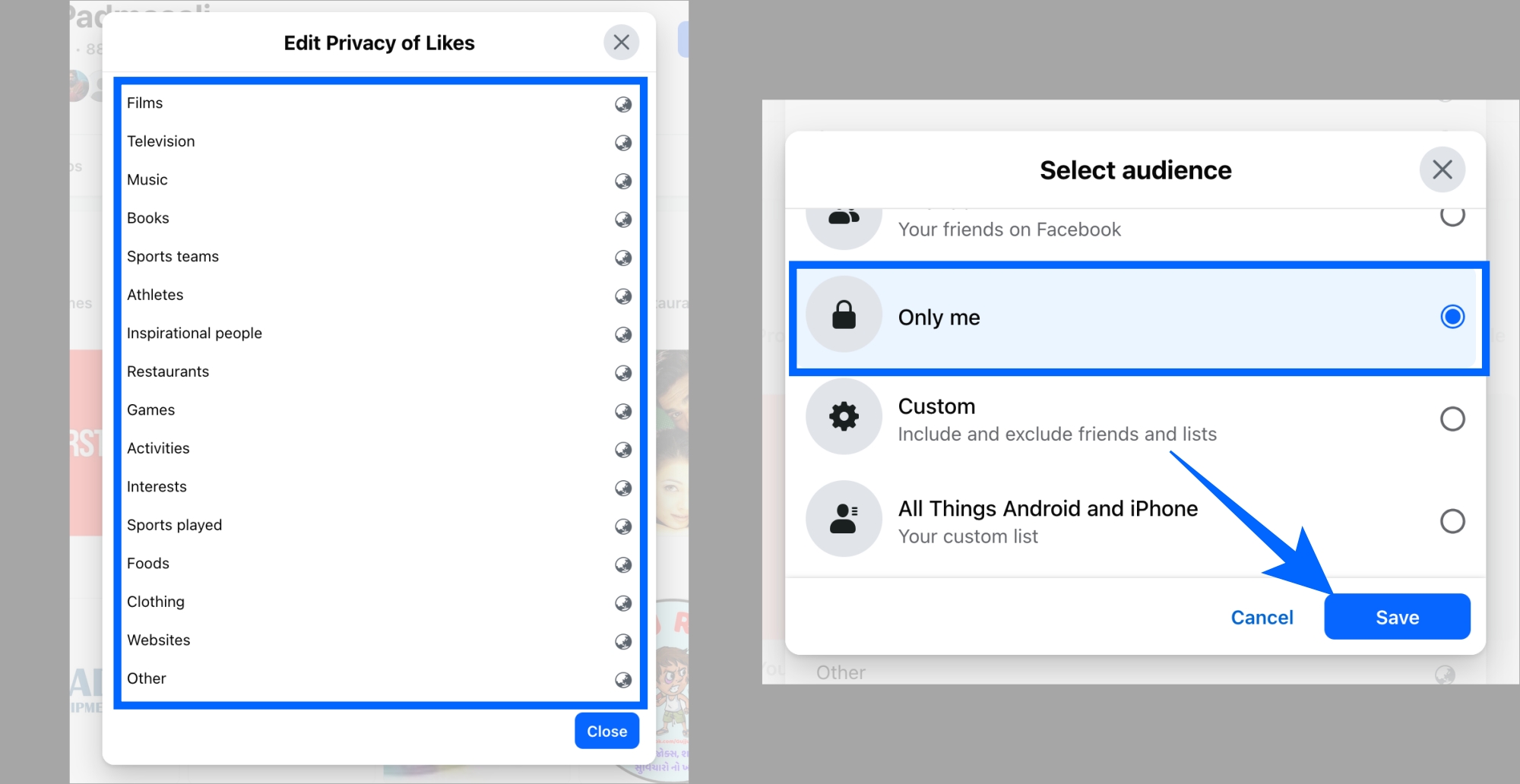
You can set music, movies, sports, and other categories to private. Page likes are public by default.
Final Thoughts
Likes can influence how we think, how we post, and how others judge content. Hiding likes gives control back to you. It lets you create without counting numbers or worrying about being judged. It’s a small setting that can change how you use Facebook and make the platform feel calmer, cleaner, and more personal. If you want to try it, turn it on and see how it changes your feed and confidence.